
Logging Practices for SAP Cloud Integration
How we use the former CPI copy templates for iFlow logging, and what our Groovy logging script does
When working with the Cloud Integration Capability of the SAP Integration Suite, we see every day that SAP’s standard logging and monitoring are insufficient.
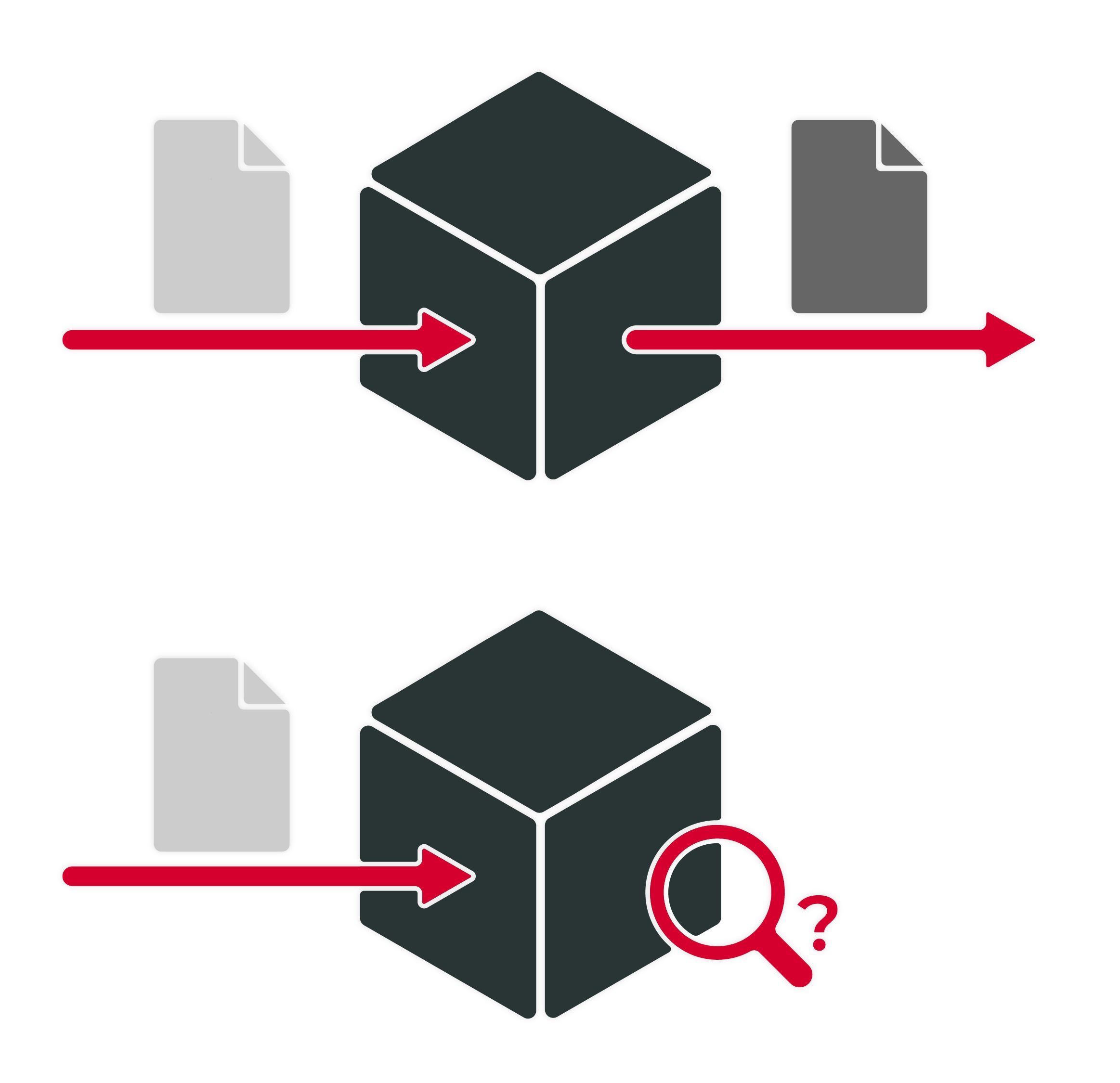
The biggest problem is that, by default, SAP Cloud Integration logs almost nothing about successful messages. Even when an error occurs, SAP Cloud Integration only logs the immediate error message, which is often not enough to determine the exact cause of the error. In such situations, the only option is often to resend the message to the cloud while enabling the extended TRACE mode to capture additional information and identify the cause of the error.
As a result, it is impossible or impractical to track the integration status of business objects and to trace the success or failure of integration processes back to a specific business object. You must check the sending or receiving system to determine the status of a process or object.
How we use the former CPI copy templates for iFlow logging, and what our Groovy logging script does
When working with the Cloud Integration Capability of the SAP Integration Suite, we see on a daily basis that SAP’s standard logging and monitoring are insufficient.
The biggest problem is that, by default, SAP Cloud Integration logs almost nothing about successful messages. Even when an error occurs, SAP Cloud Integration only logs the immediate error message, which is often not enough to determine the exact cause of the error. In such situations, the only option is often to resend the message to the cloud while enabling the extended TRACE mode to capture additional information and identify the cause of the error.
As a result, it is impossible or impractical to track the integration status of business objects and to trace the success or failure of integration processes back to a specific business object. You must check the sending or receiving system to determine the status of a process or object.
How we use the former CPI copy templates for iFlow logging and what our Groovy logging script does
When working with the Cloud Integration Capability of the SAP Integration Suite, we see on a daily basis that SAP’s standard logging and monitoring are insufficient.
The biggest problem is that, by default, SAP Cloud Integration logs almost nothing about successful messages. Even when an error occurs, SAP Cloud Integration only logs the immediate error message, which is often not enough to determine the exact cause of the error. In such situations, the only option is often to resend the message to the cloud while enabling extended TRACE mode to capture additional information and identify the cause of the error.
As a result, it is impossible or impractical to track the integration status of business objects and to trace the success or failure of integration processes back to a specific business object. You must check the sending or receiving system to determine the status of a process or object.
Our Expertise
Our iFlow Logging Groovy Script
We often see that many redundant logging scripts are used in our customers’ cloud integration development tenants because each developer and consultant writes their own version with the specific features they need at the moment. Reusability and continuous improvements in script quality are being wasted.
We offer a universal logging script that is deployed once in a Cloud Integration tenant. To do this, we use a global script collection.
Each iFlow then uses this single global logging script and configures its functions via Properties.

The iFlow Template:
Copy Template for iFlow Logging
Using our iFlow logging script, we provide a template iFlow and customize it to match your naming conventions and other specific requirements. This template then displays the logging rules for your system and should be copied for each new integration.
This ensures that logging practices remain consistent throughout the system, and developers do not have to repeatedly set up or call the same logging functions.


Global Groovy Logging Script
One script for all applications: Call the same script at every key point in each iFlow and control its functions using properties.
iFlow Template for Logging, Naming Conventions, and Best Practices
Together, we will create a template for all new iFlows to standardize best practices, naming conventions, and logging.
Payload/Body Logging: Where and When You Need It
Insert logging steps at key points; we recommend at least one right at the beginning and one at the end of each iFlow. Then, as needed, enable or disable logging of message bodies for all or individual steps.
Custom Header Property Logging for Metadata
For each logging step in the iFlow, define which properties and headers you want to log there. You can then find this metadata directly in the Message Monitoring Log. You can even search for them. “What is the status of Order X?”—we’ll show you how to find it.
Up to 89 logging steps per iFlow
Our logging script currently supports up to 89 logging steps per iFlow. We recommend using names starting with Log_010 through Log_099 for info logs and Err_010 through Err_099 for expected error cases. Err_000 through Err_009 are reserved for exception subflows.
Anonymization of Message Bodies
If iFlow were to log personal data, you can replace it with asterisks (“*”) by simply listing the field names in question. This is currently supported for XML and JSON formats.
(Almost) No More TRACE Logs?
Instead of repeatedly setting an iFlow to TRACE for 10 minutes to understand an error, our solution allows you to write relevant data—including message bodies—directly to the message processing log. In our experience, this replaces almost all applications for TRACE logs.
Internal Debugging Logs
Our script has been tested over the years and used by several customers.
Internal debugging logs are also available for any future changes to the script or in case an error is discovered after all.
One script for all applications: Call the same script at every key point in every iFlow and control its functions using properties.
iFlow Template for Logging, Naming Conventions, and Best Practices
Together, we’ll create a template for all new iFlows to standardize best practices, naming conventions, and logging.
Insert logging steps at key points; we recommend at least one right at the beginning and end of each iFlow. Then, as needed, enable or disable logging of message bodies for all or individual steps.
Custom Header Property Logging for Metadata
For each logging step in the iFlow, define which properties and headers you want to log there. You can then find this metadata directly in the Message Monitoring Log. You can even search for them. “What is the status of Order X?”—we’ll show you how to find it.
Our logging script currently supports up to 89 logging steps per iFlow. We recommend using names starting with Log_010 through Log_099 for info logs and Err_010 through Err_099 for expected error cases. Err_000 through Err_009 are reserved for exception subflows.
If iFlow were to log personal data, you can replace it with asterisks (“*”) by simply listing the field names in question. This is currently supported for XML and JSON formats.
Instead of repeatedly setting an iFlow to TRACE for 10 minutes to understand an error, our solution allows you to write relevant data—including message bodies—directly to the message processing log. In our experience, this replaces almost all applications for TRACE logs.
Our script has been tested over the years and used by several customers.
Internal debugging logs are also available for any future changes to the script or in case an error is discovered after all.
One script for all applications: Call the same script at every key point in each iFlow and control its functions using properties.
iFlow Template for Logging, Naming Conventions, and Best Practices
Together, we’ll create a template for all new iFlows to standardize best practices, naming conventions, and logging.
Insert logging steps at key points; we recommend at least one right at the beginning and end of each iFlow. Then, as needed, enable or disable logging of message bodies for all or individual steps.
Custom Header Property Logging for Metadata
For each logging step in the iFlow, define which properties and headers you want to log there. You can then find this metadata directly in the Message Monitoring Log. You can even search for them. “What is the status of Order X?”—we’ll show you how to find it.
Up to 89 logging steps per iFlow
Our logging script currently supports up to 89 logging steps per iFlow. We recommend using names starting with Log_010 through Log_099 for info logs and Err_010 through Err_099 for expected error cases. Err_000 through Err_009 are reserved for exception subflows.
If iFlow were to log personal data, you can replace it with asterisks (“*”) by simply listing the field names in question. This is currently supported for XML and JSON formats.
Instead of repeatedly setting an iFlow to TRACE for 10 minutes to understand an error, our solution allows you to write relevant data—including message bodies—directly to the message processing log. In our experience, this replaces almost all applications for TRACE logs.
Our script has been tested over the years and used by several customers.
Internal debugging logs are also available for any future changes to the script or in case an error is discovered after all.
When you work with us, you’ll receive
FAQ: Logging
1. How does logging work in SAP Cloud Integration?
SAP itself logs only error messages, but not any details about the message that caused the error. As a result, it is often difficult or impossible to extract the test data needed for error diagnosis. You can write your own Groovy script that logs any part of each message, ranging from specific metadata—such as a customer number or order number—to the entire message. However, there are a few important best practices to keep in mind.
2. What are some best practices for logging in SAP Cloud Integration?
- Create a central iFlow as a template (Template iFlow) in which you implement the logging exactly as you want it. All new iFlows will then be created from copies of this template so that the logging solution is already built in.
- Write or purchase a single central logging script in the Groovy scripting language and place it in a Script Collection so that all iFlows can access it and new features and bug fixes do not have to be rolled out in individual iFlows.
- Do not always log all payloads or message bodies, so as not to fill up the storage space of your Integration Suite. Write or purchase a script that can log payloads as needed.
- Log important metadata in Custom Header Properties so that it can be filtered in the message processing logs.
- Remember to anonymize personal data in your logs!
When you work with us, you’ll receive
FAQ: Logging
1. How does logging work in SAP Cloud Integration?
SAP itself logs only error messages, but not any details about the message that caused the error. As a result, it is often difficult or impossible to extract the test data needed for error diagnosis. You can write your own Groovy script that logs any part of each message, ranging from specific metadata—such as a customer number or order number—to the entire message. However, there are a few important best practices to keep in mind.
2. What are some best practices for logging in SAP Cloud Integration?
- Create a central iFlow as a template (Template iFlow) in which you implement the logging exactly as you want it. All new iFlows will then be created from copies of this template so that the logging solution is already built in.
- Write or purchase a single central logging script in the Groovy scripting language and place it in a Script Collection so that all iFlows can access it and new features and bug fixes do not have to be rolled out in individual iFlows.
- Do not always log all payloads or message bodies, so as not to fill up the storage space of your Integration Suite. Write or purchase a script that can log payloads as needed.
- Log important metadata in Custom Header Properties so that it can be filtered in the message processing logs.
- Remember to anonymize personal data in your logs!
FAQ: Logging
1. How does logging work in SAP Cloud Integration?
SAP itself logs only error messages, but not any details about the message that caused the error. As a result, it is often difficult or impossible to extract the test data needed for error diagnosis. You can write your own Groovy script that logs any part of each message, ranging from specific metadata—such as a customer number or order number—to the entire message. However, there are a few important best practices to keep in mind.
2. What are some best practices for logging in SAP Cloud Integration?
- Create a central iFlow as a template (Template iFlow) in which you implement the logging exactly as you want it. All new iFlows will then be created from copies of this template so that the logging solution is already built in.
- Write or purchase a single central logging script in the Groovy scripting language and place it in a Script Collection so that all iFlows can access it and new features and bug fixes do not have to be rolled out in individual iFlows.
- Do not always log all payloads or message bodies, so as not to fill up the storage space of your Integration Suite. Write or purchase a script that can log payloads as needed.
- Log important metadata in Custom Header Properties so that it can be filtered in the message processing logs.
- Remember to anonymize personal data in your logs!